MultiExecPro
A PowerShell CLI tool that lets you run any command across multiple project folders at once — interactively, with a beautiful terminal UI.
Built by Eng. Ayah Refai.
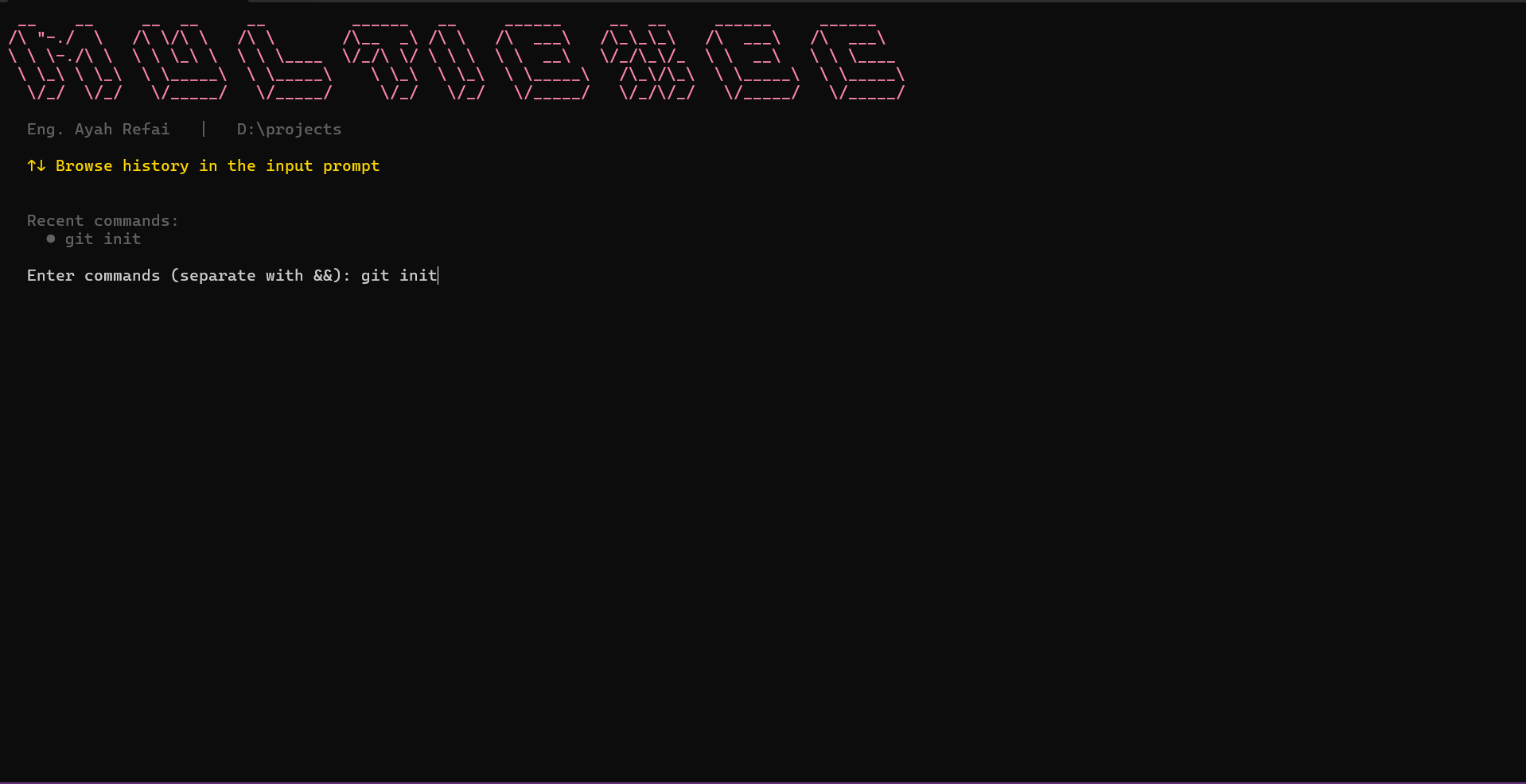
✨ Features
- 🗂️ Auto-detects all subfolders in your current directory as "projects"
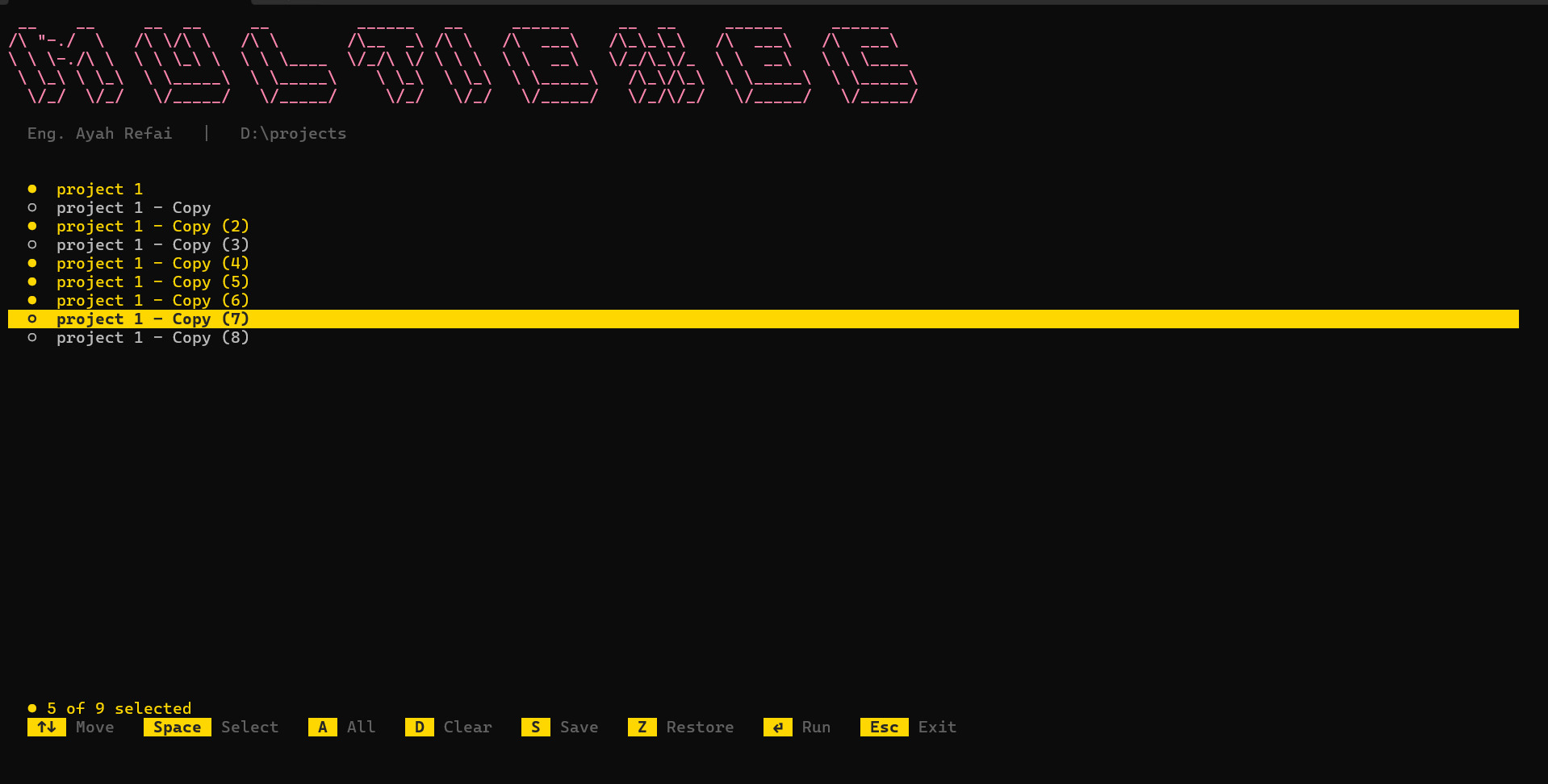
- ☑️ Interactive multi-select menu — pick one, many, or all projects
- ⚡ Run any command (or chain multiple with
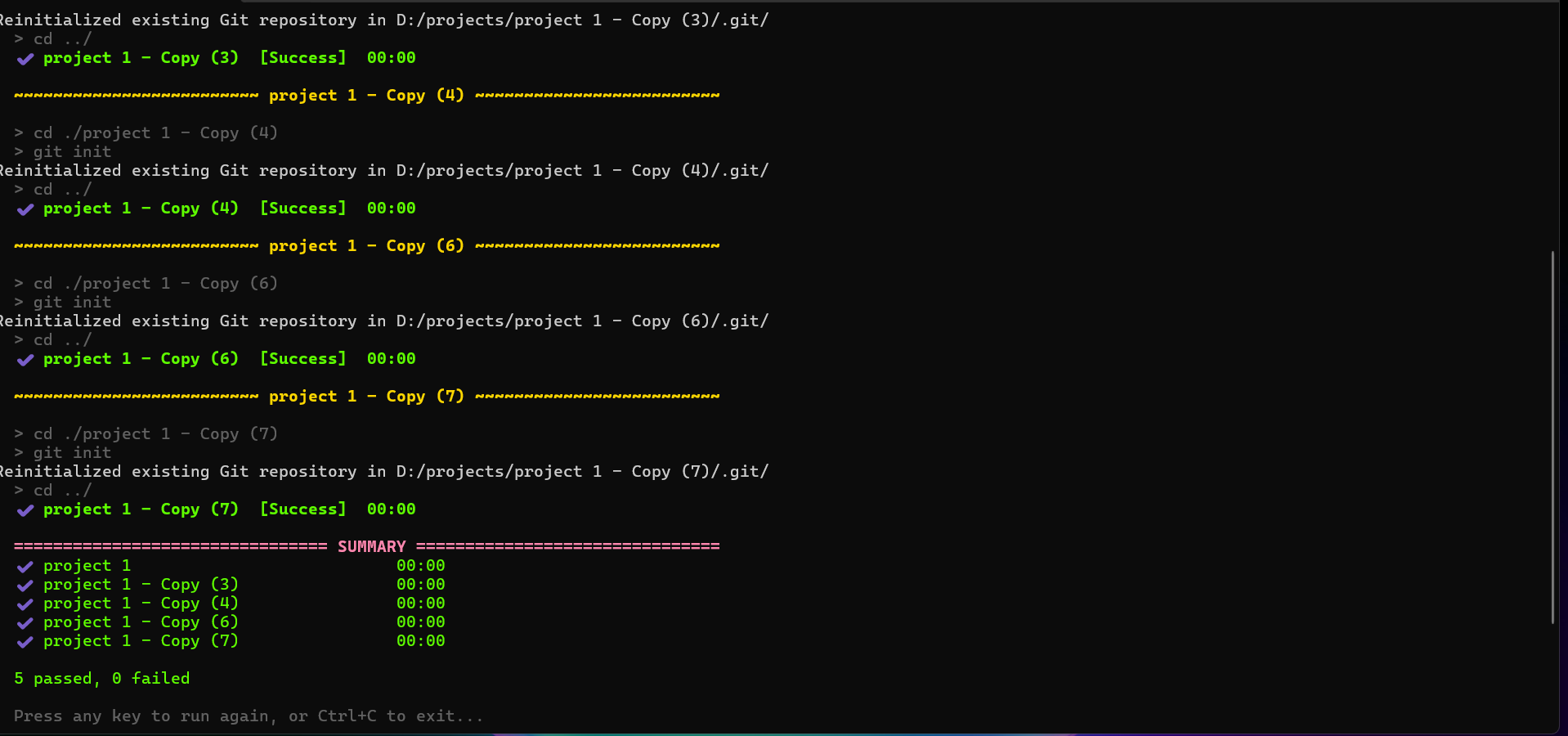
&&) across all selected projects - 📋 Per-project live output with success/failure status
- 📊 Summary report at the end showing passed, failed, and elapsed time
- 🕘 Command history — reuse recent commands quickly
- 💾 Save & restore project selections within a session
- 🌗 Auto-detects Windows dark/light mode for theme
📋 Requirements
- PowerShell 5.1 or higher (Windows PowerShell or PowerShell 7+)
- Windows / Linux / macOS
- Internet connection (for installation only)
🚀 Installation
Open a terminal and run one command:
Windows (PowerShell)
irm https://raw.githubusercontent.com/AyahAlrifai/MultiExecPro/main/install.ps1 | iex
Linux / macOS
pwsh -c "irm https://raw.githubusercontent.com/AyahAlrifai/MultiExecPro/main/install.ps1 | iex"
Note for Linux/macOS: PowerShell (
pwsh) must be installed first.
- Ubuntu/Debian:
sudo apt-get install -y powershell- macOS:
brew install --cask powershell
The installer will automatically:
| Step | What happens |
|---|---|
| 📁 Create folder | ~/.multiexecpro (Linux/Mac) or %USERPROFILE%\.multiexecpro (Windows) |
| ⬇️ Download script | Latest version from GitHub |
| 🛣️ Add to PATH | So you can run it from anywhere |
| ⚙️ Register command | Adds multiExecPro to your shell profile |
| 🔓 Fix permissions | Sets execution policy on Windows automatically |
After installation, open a new terminal window and you're ready.
📖 Usage
Step 1 — Navigate to your projects folder
cd D:\my-projects
Your folder structure should look like this:
my-projects/
├── project-a/
├── project-b/
└── project-c/
Step 2 — Run the tool
multiExecPro
Step 3 — Enter a command
Type any shell command you want to run. Use && to chain multiple commands:
mvn clean install
git pull && mvn clean install
npm install && npm run build
Step 4 — Select projects
An interactive menu appears showing all subfolders. Use the keyboard to select which projects to run the command on:
| Key | Action |
|---|---|
↑ / ↓ | Move cursor up/down |
Space | Select / deselect project |
A | Select all projects |
D | Clear all selections |
S | Save current selection for later |
Z | Restore previously saved selection |
Enter | Run command on selected projects |
Esc | Go back / exit menu |
Step 5 — View results
The tool runs your command inside each selected project folder, shows live output, then displays a summary:
✔  project-a                            00:12
✔  project-b                            00:08
✘  project-c                            00:03

  3 passed, 1 failed
Step 6 — Run again or exit
After execution, press any key to run another command, or Ctrl+C to exit.
💡 Examples
Pull latest changes in all projects:
git pull
Build all Maven projects:
mvn clean install -DskipTests
Install dependencies and build all Node projects:
npm install && npm run build
Run multiple git operations:
git fetch && git pull && git status
🔄 Update
To get the latest version, simply run the installer again:
irm https://raw.githubusercontent.com/AyahAlrifai/MultiExecPro/main/install.ps1 | iex
🗑️ Uninstall
Windows
Remove-Item -Recurse -Force "$env:USERPROFILE\.multiexecpro"
Then remove the multiExecPro function line from your PowerShell profile:
notepad $PROFILE
Linux / macOS
rm -rf ~/.multiexecpro
Then remove the MultiExecPro lines from ~/.zshrc or ~/.bashrc.
🐛 Troubleshooting
| Problem | Solution |
|---|---|
command not found: multiExecPro | Open a new terminal after installation |
running scripts is disabled | Run Set-ExecutionPolicy RemoteSigned -Scope CurrentUser as Admin |
No subdirectories found | Make sure you cd into a folder that contains project subfolders |
pwsh: command not found | Install PowerShell first (see Requirements above) |